

Bybit Official Website - www.bybit.com. To enter your personal account, open the address manually or use a previously verified bookmark, click “Login” and select your authorization method. Before entering your password, check the full page address. The logo, familiar design and secure connection icon do not confirm that this is an exchange.
A questionable link or contact can be verified via Bybit Authenticity Check. If you don't have an account yet, it's available Bybit partner page for MCG readers. Clicking on an affiliate link also requires checking the final address before registering.
How to check the official Bybit address
Dial https://www.bybit.com in the browser address bar. On your phone, tap on a line to see the full address: the abbreviated display sometimes hides part of the name. You need to check the actual address of the opened page. The signature “Bybit - official website” in a search or message text can lead anywhere.
An address has several parts. After https:// comes the name of the site, then the path to the page, which begins with a slash. The name Bybit can appear in the name of a third-party site, in the path, and in the link parameters. The mere presence of this word does not prove anything.
| Address or attribute | What does it mean | What to check |
|---|---|---|
| www.bybit.com | Main official address | Full writing, without extra symbols |
| bybit.com.example.invalid | Name is inside another domain | End of name before first slash |
| example.invalid/bybit.com | Bybit is only specified in the page path | Site name - example.invalid |
| HTTPS or padlock icon | The connection to the site shown is secure | Who owns the address itself |
The addresses with example.invalid in the table are fictitious and are given for explanation. These are not jumping sites. In this link, they can also replace similar letters, add a hyphen or another ending. On a small screen, such changes are easy to miss.
Do not consider any other link named Bybit to be an official "mirror". The platform may have separate regional services, but an unknown address must first be confirmed through an official channel. Product availability may vary by country and account conditions. A working login form does not mean that the service allows service in your region.
How to check the link in the Bybit ID
The verification service is located on the main domain along the path /ru-RU/verification. On the page, select the source type: for example, “Website” for a site, “Email.” mail" for mail or the desired social network. Insert an address or contact into the field and click “Search”. Selecting a type is necessary so that the check applies to the source you received.
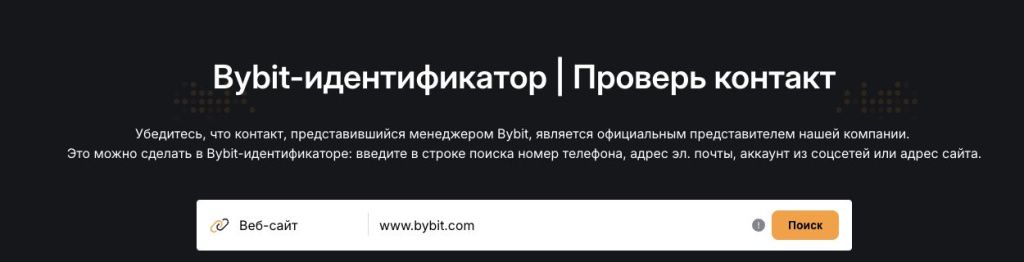
Practical example: Telegram sent a link with a promise to restore access. Open the check yourself, select “Website” and insert the exact link. Verifying a real Telegram account does not automatically verify every address in a forwarded message. If you are checking the sender separately, use the sender's exact ID rather than the "Bybit Support" display name.
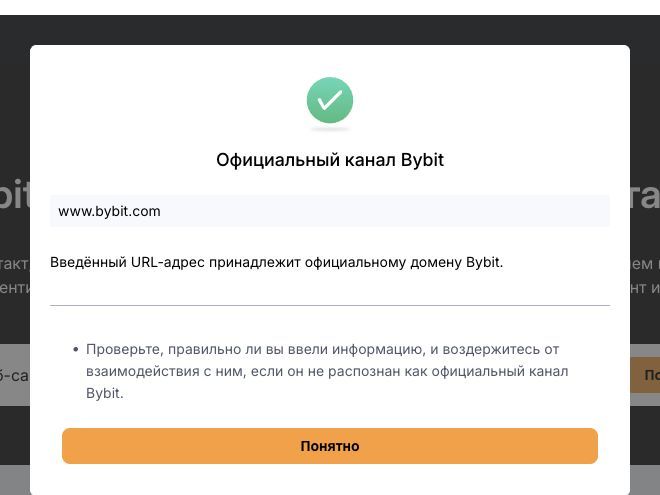
If the source is not verified or the result is unclear, stop before entering data and contact the Help Center. Do not try to correct the address at random until the service shows a positive response. The task is to establish the origin of the received contact.
The page also has a "Report" button to report a fake. Send the address, time and photo of the suspicious message. No password, one-time code or backup key are needed for this message. A positive address verification result does not negate other checks: the content of the request and the action you confirm also matter.
How to log into your Bybit account
B Bybit login instructions describes authorization with email or phone number and password. An account with two-factor verification enabled will require additional verification. Use the method in which your account is registered: the same profile name does not mean that the correct login has been selected.
- Open the verified page. Verify the address and click “Login”. Do not enter data into a form that is overlaid on someone else's website or that opens from a message from an unknown sender.
- Enter your login. Select "By Email" or "By Phone Number". For telephone, check the country code; for mail - writing the address. After filling, click “Next”. Do not use another account's data from autofill.
- Enter the password. If your password manager suddenly doesn't recognize the page, double-check the address first. This is a reason to figure it out, and not immediately copy the password manually.
- Complete the requested verification. Read the name of the field: the code from the letter, SMS and the authenticator application code refer to different verification methods.
- Check the profile that opens. Check your UID and account, especially if you have sub-accounts or multiple saved login methods.
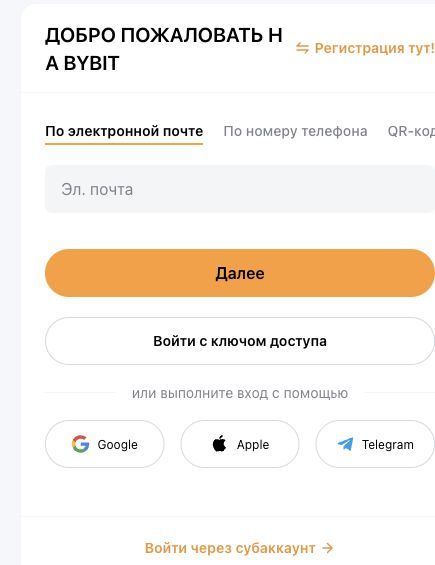
The password and code are entered in the verified interface for the action that you initiated yourself. The message in the messenger “send the code so that we can complete the login” is not a continuation of this procedure. Sharing a valid code allows another person to confirm the action for you.
If you used a third-party login method when registering, please select it in the official interface first. Do not create a second account just because the e-mail form did not accept the usual password. This can make it difficult to find balance and regain access.
Login using QR code
By QR input instructions on the site authorization page you need to open the QR code, then scan it with a scanner in the Bybit application, where you are already logged into your account. After scanning, confirm login on your phone.
This confirms the login on the computer. You need to scan the code of the page that you opened yourself. A QR from correspondence, a “get a bonus” picture, or a request supposedly from support is not suitable: it can be used to confirm someone else’s session. Before agreeing, read what action is requested in the application.
If the application is not yet installed, methods for downloading and checking the source are discussed in instructions for downloading Bybit. To log in, you don’t need to install an extension sent by a stranger, a “security certificate,” or a remote access program.
What to configure after the first login
Start by securing your email and a separate exchange password. If one password is used in both places, its leak affects two access methods at once. Then open Account → Security and check the available settings. The names of items on the website and in the application may differ slightly.
Google 2FA. An authenticator code complements login and transaction confirmation. When binding, Bybit shows the backup key Recovery Key Phrase: it is needed to restore the authenticator. Keep it separate from public photos and correspondence. This is the secret to setting up 2FA, it should not be sent “for security testing”.
Passkey. Bybit supports device-verified passkey. When setting up, check exactly where it will be saved: on the current device, hardware key, or in the synchronization system used. Protecting the phone itself, the computer and the associated account remains necessary. Compatibility details are in Passkey instructions.
Fund Password. This is a separate password for checking transactions with funds. It is different from the login password. Don't use the same combination for it and don't pass it around in chats.
New Address Withdrawal Lock. According to Bybit Security Guide, the enabled function limits the use of the new output address for 24 hours. This is the delay for the newly added address; it does not replace verification of the recipient, network and other operations.
Example: after someone else logs in, an attacker tries to add his own address. This delay gives time to notice the change. But you cannot count on it as a complete blocking of your account: already saved addresses and other actions must be checked separately.
Anti-phishing code: how to set it up and what it checks
B Anti-phishing Code setting user sets his own combination. On the website, open Account, then Security and Anti-phishing Code settings. Enter the code and complete the security check. Once enabled, it should appear in subsequent official emails and Bybit SMS.
An anti-phishing code is not the same as a one-time login code. You recognize the first one in the message, the second one is used to confirm a specific action. Do not choose your password as the anti-phishing code: this combination will be visible in emails.
Let's say you receive a "new login" email, but the configured combination is missing or different. Do not click the button from the letter. Open your account as usual and check your devices. The right combination is also no reason to ignore a suspicious request: for example, a requirement to hand over a password or transfer assets to a “reserve wallet.”
How to check devices with account access
In the application, open User Center → Security → Trusted Devices. The site uses a page for managing trusted devices. Check the list against phones and computers you have used. If the entry is unclear, compare the entry details with your last entry.
Bybit recommends removing an unfamiliar device from the list and reporting suspicious activity. After removal, the platform notifies you of login attempts from an unrecognized device. Changing the list alone is not enough if the attacker has already obtained the password or access to the mail: eliminate this source of access as well.
Checking is especially useful after working on someone else's computer, losing your phone, or receiving an unexpected notification. Closing a tab does not equal ending the session. On a shared device, log out via Log Out and do not save the password; It is better to carry out daily work with balance from your secure device.
Do not confuse input notification with output notification. In the first case, the device and session are checked, in the second - the currency, amount, address and transaction status. In case of an unfamiliar operation, you need to act immediately, even if the overall balance still looks familiar.
Why can't I log into Bybit?
Password does not match
First check the selected login, layout, extra space and entry in the password manager. If your password is lost, use Forgot Password on the verified page. Do not try to restore access through a person who promises to “remove the block” for transferring.
Operation restrictions may apply after changing security settings. Read the account notice and deadline specified for your change. The mere fact of a time limit does not mean that you need to reset your password again or register a new profile.
Authenticator code rejected
B parsing the Invalid Code error Bybit suggests first checking that the desired account entry is selected and the device date and time are set automatically. Wait for a new code if the current one is already expiring. A code from another service or another Bybit profile will not work.
If a new browser window fails to log in, the reason may be related to the data from the previous session. First, make sure that access to mail and authenticator is preserved, then clear the site data. Do not delete the 2FA record as the first method to fix the error; this may cause you to lose a working verification.
Letter or SMS did not arrive
Check the address or number provided, spam folder, and delivery delay. Do not confuse the login message with the code from a previous attempt or other transaction. Frequently repeated requests make it difficult to understand which message belongs to the current form. If there is a persistent error, save its exact text and time.
If you have lost access to your phone, email, or authenticator, use the official recovery process. What information to prepare and how to check the appeal is discussed in Bybit support article.
What to do if the data has already reached a suspicious site
Do not continue correspondence with the sender of the link. Go to a verified device, open Bybit yourself and evaluate what data was transferred. If you just looked at the page, this is one situation; If you entered a password and one-time code, you need to proceed from possible access to the account.
- Password entered. Change it on the official website. If the same combination is used elsewhere, replace it there too, especially in the mail.
- Passed on a code or confirmed someone else's login. Check your devices, notifications, transaction history, and security settings. If there are signs of compromise, block your account.
- Installed the program from the message. Do not change passwords on the same device before checking its status: the new value may also be leaked to someone else.
- Unfamiliar output detected. Record time, currency, amount, address, status and TXID if already assigned. Please contact us immediately through the official channel.
For emergency access restriction, Bybit provides account deactivation. When login is available, the path goes through Account → Account Activities → Deactivate an Account. The form requires you to read the consequences and pass a check. After deactivation, regular login is no longer possible and restrictions also apply to associated subaccounts.
If you cannot log in, the official help window provides a Lock Account. For an account with mail, the instructions describe a request for blocking via e-mail; When registering by phone or losing your email, you are asked to contact the official chat. Do not proceed to blocking from an unverified email: first open the site yourself.
Deactivation does not return assets that have already been sent. Save your confirmations: changing the password does not in itself cancel the withdrawal. Do not transfer additional money for “unfreezing”. For further analysis, we need facts from history, and not a new payment to a person from correspondence.
Questions about your Bybit account
After logging in, the balance is empty. Is this necessarily a hack?
No. First check the UID, selected account and asset section. The funds may be in another internal account. Their location is discussed in the material about Funding and Unified Trading Account. If the history shows unfamiliar charges, proceed to the security check.
Why is the amount different in demo mode?
The demo uses educational tools. Check the mode designation and do not compare its balance with your real account. Differences between Demo Trading and Testnet We analyzed [[T129]] separately. we covered separately.
Where can I check my personal commission after logging in?
On the My Fee Rate page for your account and product. A general advertising rate may not describe a specific performance. Examples of calculations are given in the article about Bybit commissions.
This material is for informational purposes only and does not constitute individual financial advice. Check settings and availability of functions in the current interface of your account.
For daily login, save a verified bookmark and use a verification method that you understand. To create an account there is Bybit affiliate link from MCG. After registration, set up protection before replenishment and first transfer.