You can write to Bybit support through the help center: click "Leave a request", select an issue and submit a ticket. Specify available email, error description and operation details. After sending, you will receive a letter with the application number - Case Number. It is convenient to continue correspondence and check the status in the Support Hub.
The Help Center is available even before registration. To create an account you can use MCG affiliate link on Bybit. Solve the problem with your current account by contacting it, saving the data of the original transaction.
The material is for informational purposes only and does not constitute individual financial advice.
Where is Bybit technical support and how to open the chat
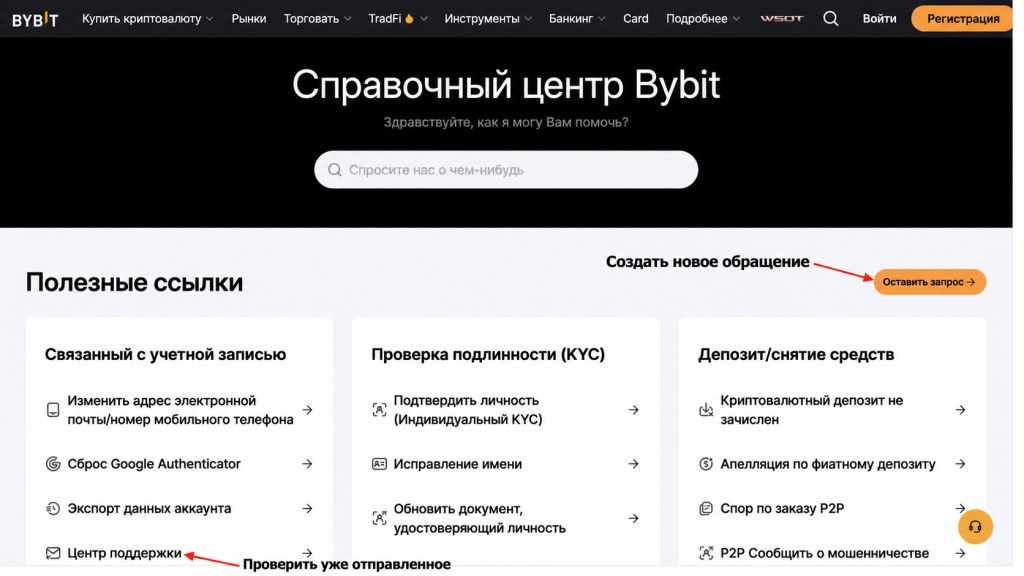
On the website, open the “Help Center” and click “Submit a request”. Another way is the “Send an appeal or complaint” link at the bottom of the site. In the app, go to your profile, then to the help center and choose to submit a request. In the English version, the corresponding button is called Submit Case.
If the Bybit support chat widget is available, open it from the official website or app. Describe your question and use the suggested method to contact the operator. The presence of a chat does not guarantee immediate connection of an employee. If you need to verify a transaction or transfer documents, create a request and save its number.
Open support within a trusted site or application. We discussed secure login methods in the article. about the Bybit official website.
How to create a support ticket
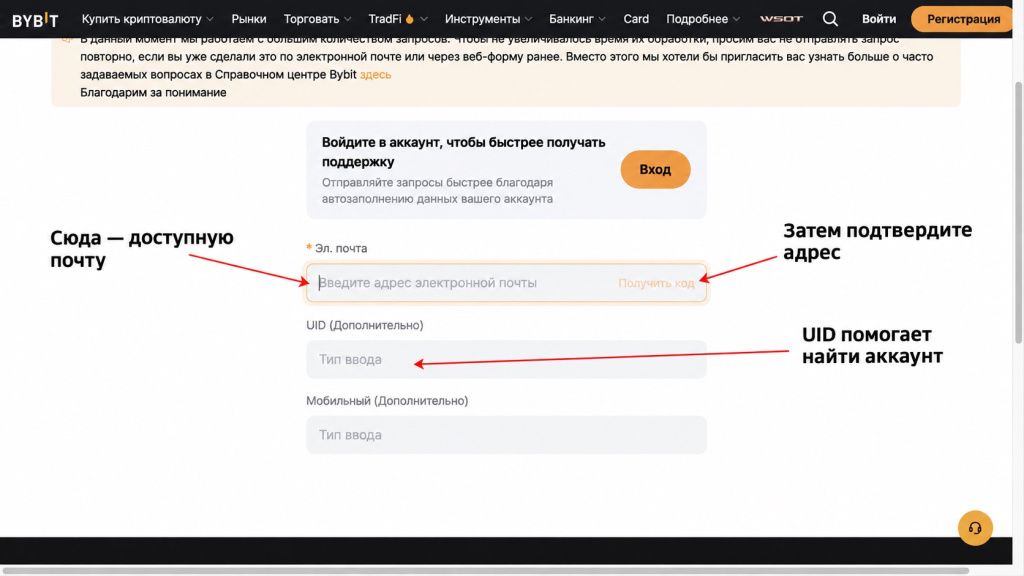
A request through a form is also called a ticket or case. This is one application with a number and correspondence history. So that the employee does not have to separately request basic information, fill it out sequentially:
- Enter your contact email. In the form without logging in, email is required, next to it there is a “Get code” button to confirm it. You need a box that you can open. UID and phone are marked as optional fields. UID—numeric user identifier; add it if you know.
- Select a category. Indicate where the problem occurred: login, deposit, withdrawal, or other available topic. Choose according to the operation itself; You may not yet know the cause of the failure.
- Describe the event in order. What they did, what results they expected and what they saw on the screen. Rewrite the error text without abbreviations.
- Add transaction data. Specify the order number, withdrawal ID or TXID, amount, coin and network - depending on the problem. Add date, time and time zone.
- Attach confirmations. Readable screenshots of status and operation will do. Check that the files open and that the required fields are visible.
- Submit the form and save the number. An automatic letter with a Case Number means that the request has been registered. The answer in essence will come separately.
If sending failed, first check your email and hit list. The application could be saved even if the page was not refreshed. By creating it again, it is easy to get two numbers for one problem. After logging in, some account information can be entered into the form automatically.
What information will help check the problem
Collect data related to the event. A complete account history for the year makes it difficult to find the required entry. Different confirmations are useful for different questions:
| Problem | What to prepare |
|---|---|
| Deposit not credited | Coin, network, amount, recipient address, TXID, sending time and status on the sender side |
| Output question | Output ID, coin, network, amount, address, status in history and TXID if it has already appeared |
| Can't login | Known UID, contact email, device, application version or browser, error text and time of its occurrence |
| Identity verification error | Test phase, failure message and instructions received. Attach documents upon request through the official channel |
| Question about P2P order | Order number, status, confirmation of payment and correspondence within the transaction. For a dispute, use the procedure provided in the order |
TXID refers to the transfer in the blockchain, and the output ID refers to the record in the service. Save both if available. If the money has not yet been sent to the network, there may not be a hash: write so. There is no need to substitute the wallet address instead of TXID.
Useful before trading USDT check translation by address and TXID. If the transfer is completed, but the balance is not visible, check the selected account: we explained separately what is the difference between Funding and UTA in Bybit. These checks will help describe the situation more accurately.
If the question is related to the amount withheld, first compare the transaction history and your tariff: Bybit commission calculation will help indicate the specific discrepancy in the appeal.
Example of a support message
Below - training sample message. Replace all values in square brackets with your own; remove unnecessary fields.
Subject: deposit [coin] in the [network name] network is not displayed on the account.
Hello. My UID: [Account UID, if known]. Email is available for response: [contact email].
[Date] at [time and time zone] I sent [amount and coin] from [service or wallet] to deposit address [address]. Sending network: [network]. TXID: [transaction hash].
For the sender, the transaction has the status of [exact name of the status]. Bybit's deposit history currently shows [status or "no transaction"]. I was waiting for credit to [account name].
I have already checked [what exactly is checked]. Attached are [the names of the files and what they show]. Please check the crediting of this transaction and let me know if additional information is needed.
For login error, replace the translation data with the device description and error screen. To delay a withdrawal, specify its ID and current status. If something changes after sending, add it to the existing request with a new timestamp.
How to attach screenshots and documents
The screenshot should read the amount, status and identifier of the required operation. Don't cut the error message down to just a red icon. If the problem occurs after multiple steps, attach sequential screens and label which step is shown in each.
Hide information that is not relevant to the question: other people's transactions, other people's data, extraneous tabs. The password, seed phrase, private key and one-time codes should not be released into circulation. UID and TXID help to find an entry, but there is no need to publish them along with your balance and personal data in an open discussion.
If support has requested a document or screen recording, first check the request in the official ticket. Follow the file requirements from the form. Do not change the contents of the supporting document. If it is not clear which fields can be hidden, clarify this in the same correspondence before sending.
How to check the status in the Help Center and respond by mail
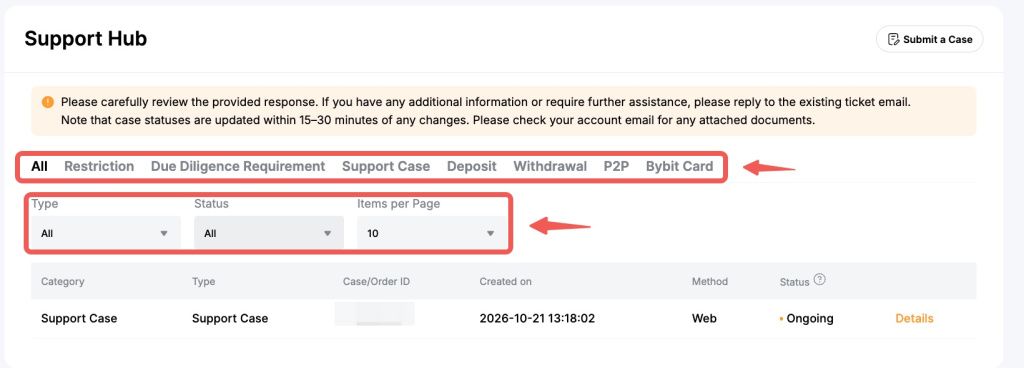
The Help Center is accessible from the Help Center and the bottom of the site. Select Deposit, Withdrawal, Support Case, or All, then filter entries by type and status. On the website, open “Details” for the desired application. In the Bybit app, you can click on the “In Progress” status. In the English interface, these items correspond to Details and Ongoing.
Details display status, ID, creation date, correspondence and expected next update. The last mark helps you understand when to return to checking. It does not mean that by this time the issue will necessarily be completely resolved.
If the letter asks for clarification, check the Case Number with your application. Please check the sender's full address to ensure that the request applies to the situation you describe. If in doubt, open the “Support Center” from the website yourself, without clicking on the button in the letter.
Reply in the same chain: save the subject and number of the request, provide the requested information point by point, list the attachments. For example: “I am sending confirmation of the transaction using Case [number]. The first file shows the amount and time, the second shows the transfer status.” This makes it easier for the employee to compare the response with the original request.
What to do if Bybit support is not responding
B Bybit instructions for sending a request, updated October 23, 2026, indicates a response time of 3-7 business days. It's about responding to an application; verification of documents or the transaction itself may require further correspondence. Also focus on the notifications in your Case.
If there is no response, look for an automated email with a number: it may have ended up in spam. Check your contact email and see the latest messages in the Support Center. Sometimes support has already asked a question and is waiting for a file or clarification.
When the specified period has passed, write to the existing request: add the Case Number, the date of the first request and briefly indicate that the question remains open. If a new status or document appears, attach it. According to Bybit's instructions, repeated requests for the same issue may slow down the response.
Until the reason for the delay is determined, do not repeat the monetary transaction just for the sake of verification. The second transfer will have its own status, but the reason for the first failure will remain unknown.
How to contact if you don’t have access to your account
Determine what exactly is inaccessible: password, email, phone or application with 2FA codes. Record at what step the input stops and save the error text. The Help Center has self-guided procedures for resetting your password, restoring Google Authenticator, and changing your email or phone number. Choose the one that suits your situation.
If employee assistance is required, the “Leave a request” form is available without logging in. Specify the email to which you still have access and a known UID. If there is no UID, leave the optional field blank. In the description, list what confirmation methods you can use and what you have already tried.
Next, follow the official recovery procedure. Additional information may be required to verify ownership. Do not send documents to a “middleman” who promises to restore the login faster. Enter the code from the letter or application only in a verified form of the service; do not share it with the person in correspondence.
If access is lost after a suspicious message, indicate this at the beginning of the application. Add time, completed activities, and unknown activities if any. From a secure device, protect your accessible email. If you are still logged into Bybit, check your security settings and use available methods to restrict third-party access.
How to distinguish support from scammers
The employee's logo, name, and knowledge of your problem do not prove the authenticity of the contact. Fraudsters can see a complaint in an open chat and contact you immediately after it. Stop communication if you are offered:
- Provide your password, 2FA code, seed phrase or private key.
- Install the remote access program and show the account screen.
- Transfer assets to a "safe" or "verification" address.
- Pay for faster response or unlocking via the employee's personal wallet.
- Continue transmitting documents in personal correspondence instead of formal communication.
Check the link, email or contact via Bybit Authenticity Check. Open the tool yourself from the official website. Even the familiar name of the sender does not cancel the verification of what exactly he is asking to do.
Frequently asked questions
Is there any point in looking for a support phone number?
For the questions described here, use the channels within the site and application. The number from an advertisement or third-party article must first be verified. Do not call the “manager” who, in response to a public complaint, sent a personal contact and offered to return the funds.
What to write if the problem has already been resolved?
Report this in an existing Case: state what changed and when. For example, the deposit appeared in the history or the login was restored. If the employee asked for additional information, clarify that the original question has already been answered.
Do I need to translate the error text into English?
Keep the original wording and screenshot. Transfer network names, statuses and identifiers accurately. You can write your own description separately: what you clicked and what result you got. If the employee's response is unclear, ask for clarification before taking action.
What to keep after contacting
Save the Case number and transaction confirmations until the verification is completed. If you are just getting acquainted with the exchange, you can proceed to registration through Bybit partner page. Open the support itself through the official interface.